Tag: googleforedu

  • Storytelling with Text Messaging

    Storytelling with Text Messaging

    Teaching students to recognize both sides of an argument, and/or have structured conversations centered around class content, regularly finds its place in our classrooms. We teach argumentative essay writing, debate protocols, conversational cues (in all languages), etc… These lessons can be completed through traditional classroom strategies, through podcasting…. and perhaps through texting.

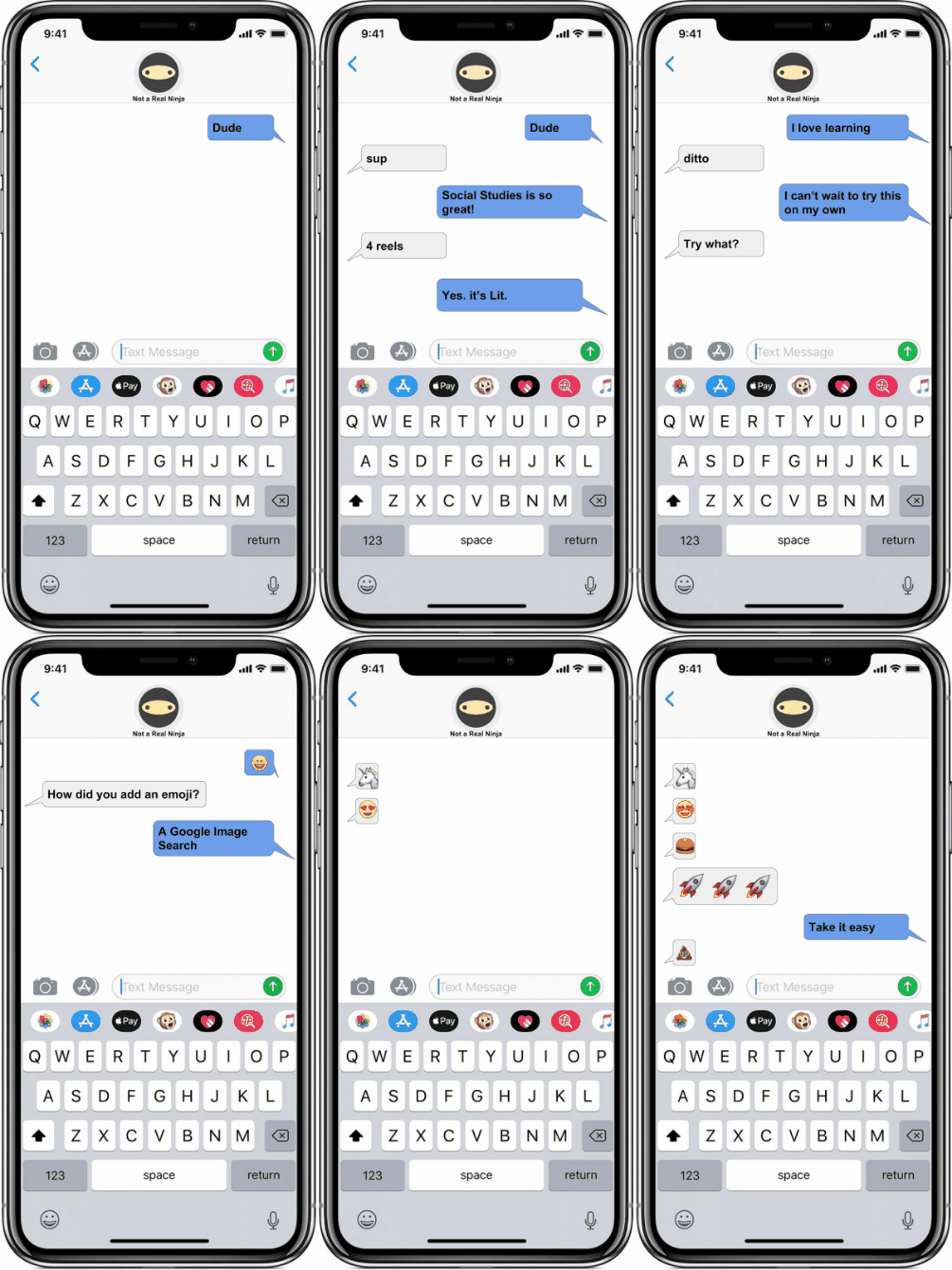
    There are a number of websites that let you create a fake text message but I have found many are loaded with questionable (and clickable) advertisements or are just plain blocked in school. To circumvent these roadblocks, I have created a Google Slides deck using an iPhone X frame for inserting text messages in.

    The process is relatively easy, you just copy and paste the appropriate shape to keep the conversation going. One of my students called me out on the fact that there is a green iMessage arrow but I made my conversation bubbles blue… thanks Brady, I fixed it for class!.

    Students can check their work by previewing the slideshow and clicking the next arrow. One bubble at a time should appear on each slide if they have done it correctly.

    Once completed, students can make the slideshow run itself with the following steps in Google Slides:

    1. Click “File”
    2. Select “Publish to the web”
    3. select “auto play” with 2 second transitions
    4. A link will be created that can be shared.

    For a bit more of an extension to this activity you can upload the slides to Tall Tweets to create an animated GIF like the one I used.

    Our students are texting and communicating via social media on mobile devices quite regularly, perhaps activities like this will provide us with teachable moments in the classroom.

    Have fun!

    Micah

  • Applied Digital Skills – Guide to an Area: World War 1 Lesson Notes #AppliedDigitalSkills #growwithgoogle @GoogleForEdu

    I love maps. There are tons of great mapping resources out there: Google Earth, Maps, and Streetview to name a few. Google MyMaps is another one that allows us to annotate pretty significantly. 

    Screen-Shot-2018-12-20-at-9.59.22-AM.pngWhen I first rolled out MyMaps to my middle school social studies classes, one student went home and immediately traced out the 50 states!

    Wow, I wish I had that kind of time and energy!

    MyMaps has been well received as a useful tool in my social studies classroom for increasing our understanding of geographic factors on historical events. As you have probably gathered, I could go on and on about MyMaps… but this post focuses on using these awesome Geo tools in a little different way supported by Google’s Applied Digital Skills program.


    This school year I have been using Google’s Applied Digital Skills program to teach my Social Studies students. I began with the If-Then Adventure Story Lesson and remixed it with a geeky-process of creating our own app about the Ellis Island Immigration Process. Next, I taught students about researching with trusted content by using the Research and Develop a Topic Lesson.


    When my classes studied World War 1, I used the Guide to an Area Lesson to pre-teach the content. Rather than guide a random area of interest, this lesson was remixed to support research and a geographic understanding of Places and Events that were significant to our study of World War 1. We used Lesson 1 and Lesson 4 to gather data in a spreadsheet (Lesson 1) and import the data into a Google MyMap (Lesson 4). Lesson 2 and 3 are great but time was an issue and I needed to modify the accordingly.


    Here are the particular steps I gave my students to adopt the Applied Digital Skills Lesson as a relevant resource in my classroom.

    To begin have students…

    1. Go to the Applied Digital Skills website.
    2. Log in
    3. Select “I am a Student”
    4. Enter this course code: __________
    5. Begin the “Guide to an Area Lesson”

    Lesson 1

    Students completed Videos 1 and 2 and when they got to video 3 they modified their spreadsheet using my notes.

    Video 3 NOTES

    1. TITLE your Spreadsheet: “Guide to an Area: World War 1 Places and Events”
    2. Column Headings: Location/Event Name, Address, Description, Category, Date, Source 1, Source 2, Google Maps URL
    3. YOU NEED  to identify information for the locations/events provided in class, with a MINIMUM OF ONE EVENT PER YEAR FROM 1914-1919. Use your Prentice Hall: America History of Our Nation (textbook) pages 706-711, the map on page 719, and page 724. For example, page 707 starts with the “Assassination of Archduke Franz Ferdinand.”
    4. Continue to find detail about each location through a Google Search. Keep track of your sources in the Sources columns. Every event must have two sources.
    5. Continue to Lesson 4 in Applied Digital Skills.

    Completed steps for Video 3 look something like this:

    Screen Shot 2018-12-20 at 10.13.15 AM
    I had to have conversations with my students about spreadsheet cells and how text is “hidden” when not wrapped. Students then followed the steps in Lesson 4 about how to “Make a Custom Map” which explained the process of importing the spreadsheet into Google MyMaps.

    Screen Shot 2018-12-20 at 10.35.12 AM


  • Applied Digital Skills – Research and Develop a Topic: Historical Figures Lesson Notes #AppliedDigitalSkills #growwithgoogle @GoogleForEdu

    I have been working with my Social Studies students to create critically sourced and clearly written work related to our course content. Research has always been near and dear to my heart, but I recognize the same enthusiasm does not always exist for my students… it turns out they have minds of their own. In an effort to best meet my students’ needs at their own pace, this school year I have been using Google’s Applied Digital Skills program. The Applied Digital Skills program allows me to serve as a guide on the side (rather than the sage on the stage) to provide on-demand, in the moment help when my student need it… I have been using a genius bar system to provide this help.


    One lesson I have used is the Research and Develop a Topic Lesson with some course requirement modifications and additions.  In fact, for my classes, I only used Lesson 1 and 2 with modifications (below) for Lesson 2 and additional requirements for source citations. Lesson 1 included a fun activity for students to understand (through creation) credible sources. Lesson 3, which I did not use, is an excellent extension activity for students who moved through the directions at a faster rate.

    Lesson 2 Modifications and Additions

    Notes for Video 4: Write a Paragraph About Your Topic


    CREATE A GOOGLE SLIDE DECK with ONE SLIDE PER HISTORICAL FIGURE (rather than the Google Doc the video asks you to create) to complete your research on the following four historical figures:

    1. John D. Rockefeller – Standard Oil
    2. Andrew Carnegie – Steel
    3. Henry Ford – Automobiles
    4. Cornelius Vanderbilt – Railroads

    Include sources as the video instructs but also add one image of the historical figure as well.


    The project must only include 4 slides, one per figure. All content must fit on the slide. Each slide is required to have:

    1. Title (name in any font and color)
    2. Photo or Painting (face)
    3. 5-8 sentence paragraph that has been edited at hemingwayapp.com*
    4. 3 Sources cited using Apogee 2**
    5. Paragraph and Sources are in Size 11 font ARIAL in Black. On a WHITE BACKGROUND slide.


    A few notes about my additions:

    *HemingwayApp


    First, I have found the Google Slides format to be super clean for inserting images and it looks good in the Google Classroom Grading screen. Next, the website http://hemingwayapp.com takes you to the Hemingway App (a website not necessarily a downloadable). The Hemingway App is a personal favorite of mine as it allows you to gamify editing. Editing your own work can be rather difficult since when we read our own work we often autocorrect in our brain adding punctuation and words were needed. This website will help us to take steps toward writing more clear messages. This screenshot shows the main page:

    Screen Shot 2018-12-18 at 12.53.38 PM

    Students will cut and paste their text into the Hemingway App where the Readability will be assessed (1). I encourage my middle school students to aim for a Grade 6 – 9 readability level (2).

    This can be a bit frustrating when students see they are writing at a post-graduate level according to the Hemingway App, but the reality is they have often copy-pasted too much of someone else’s work or that the student’s writing is just not clear. I want to help my students write clear messages in their own words, the readability tool can help with that. Further, in the Hemingway App adverbs, passive voice, and difficult to read sentences are highlighted. I tell my students it’s like playing a game, their job is to make all the colors/errors go away.


    **Apogee 2 Citation Creator

    The fast citation tool available through Google Docs “Explore Button” is great for quickly citing work, but it does not always provide the more rigorous citation that I require of my students. Apogee 2 Citation Creator (3) is an excellent tool to bridge this gap. This free extension will allow students to quickly generate a citation for any page they visit. The citations will provide a “credibility score” out of 10. This score is based on the amount of information in the citation. No Author (n.a.) and/or No Date (n.d.) of publication will reduce this score… students can, of course, enter this manually.

    Screen Shot 2018-12-18 at 12.53.15 PM

    Sources

    1. “Hemingway Help – Hemingway Editor.” http://www.hemingwayapp.com/help.html. Accessed 14 Dec. 2018.
    2. “This Surprising Reading Level Analysis Will Change the Way You ….” https://contently.com/2015/01/28/this-surprising-reading-level-analysis-will-change-the-way-you-write/. Accessed 14 Dec. 2018.
    3. “Apogee2 | Citation Creator – Google Chrome.” 16 Jul. 2018, https://chrome.google.com/webstore/detail/apogee2-citation-creator/gbbpnkefafembhibompejknmjndilgaj. Accessed 18 Dec. 2018.
     

  • How to stop Google Slides from auto-advancing when you click on them

    Google Slides is one of my favorite G Suite programs since it is so versatile. I have shared many times that my favorite hack or use of Slides is to build your own app with it (see “Create your own “My School App” in Google Slides for mobile devices”). When using this app process with my students on a recent project (Gaming, VR Exploring, and App Building: The Ellis Island Hack-A-Thon) I found that, while in presentation mode, some students would click on the empty space in the slide and auto advance to the next slide which completely circumvented their app design.

    My strategy to stop Google Slides from auto-advancing is to insert a shape that covers the whole slide and link it to the existing slide. Additionally, text boxes that are not buttons must also be linked to the existing slide. This video explains the whole process: